


How To Use v2rayN
Download v2rayN form Microsoft Store:

-
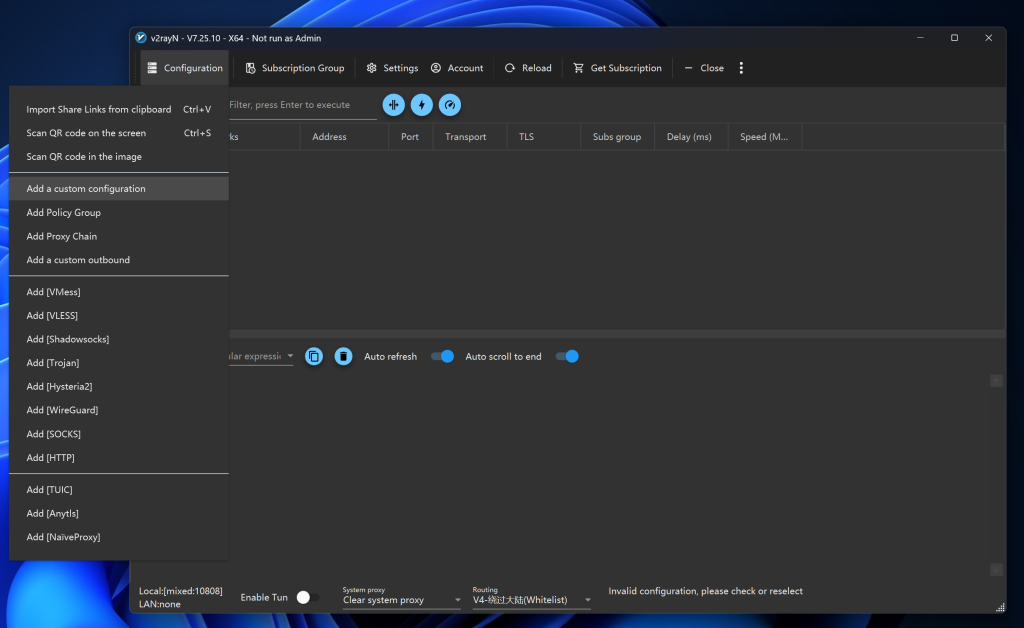
- Method 1: Bulk Import via Clipboard (Most Common)
-
- Copy your node subscription link or a single node URL (starting with
vmess://,vless://,trojan://, etc.). - Return to the v2rayN interface, click Servers in the top menu, and select Import bulk URLs from clipboard.
- Copy your node subscription link or a single node URL (starting with
-
- Method 1: Bulk Import via Clipboard (Most Common)
- For Example:
-
ss://YWVzLTI1Ni1nY206WlJwZ2FCZUd4dEVOSVhndmhwa1pCS3o5R25XUlMyZFljeDlPK2EyaXdOND0@202.50.253.81:19999?#%E6%84%8F%E5%A4%A7%E5%88%A9_CC0889ss://YWVzLTI1Ni1nY206WlJwZ2FCZUd4dEVOSVhndmhwa1pCS3o5R25XUlMyZFljeDlPK2EyaXdOND0@202.50.253.72:19999?#%E6%84%8F%E5%A4%A7%E5%88%A9_8BDED3ss://YWVzLTI1Ni1nY206WlJwZ2FCZUd4dEVOSVhndmhwa1pCS3o5R25XUlMyZFljeDlPK2EyaXdOND0@202.50.253.18:19999?#%F0%9F%87%AE%F0%9F%87%B9%20%E6%84%8F%E5%A4%A7%E5%88%A9_4A88F5ss://YWVzLTI1Ni1nY206WlJwZ2FCZUd4dEVOSVhndmhwa1pCS3o5R25XUlMyZFljeDlPK2EyaXdOND0@202.50.253.90:19999?#%E6%84%8F%E5%A4%A7%E5%88%A9_33C0FEss://YWVzLTI1Ni1nY206WlJwZ2FCZUd4dEVOSVhndmhwa1pCS3o5R25XUlMyZFljeDlPK2EyaXdOND0@202.50.253.54:19999?#%F0%9F%87%AE%F0%9F%87%B9%20%E6%84%8F%E5%A4%A7%E5%88%A9_2D82A2ss://YWVzLTI1Ni1nY206WlJwZ2FCZUd4dEVOSVhndmhwa1pCS3o5R25XUlMyZFljeDlPK2EyaXdOND0@202.50.253.99:19999?#%E6%84%8F%E5%A4%A7%E5%88%A9_CD0BD1ss://YWVzLTI1Ni1nY206WlJwZ2FCZUd4dEVOSVhndmhwa1pCS3o5R25XUlMyZFljeDlPK2EyaXdOND0@202.50.253.36:19999?#US%E7%BE%8E%E5%9B%BD%28%20%29ss://YWVzLTI1Ni1nY206WlJwZ2FCZUd4dEVOSVhndmhwa1pCS3o5R25XUlMyZFljeDlPK2EyaXdOND0@202.50.253.27:19999?#%E8%8A%AC%E5%85%B0%28%20%29ss://YWVzLTI1Ni1nY206WlJwZ2FCZUd4dEVOSVhndmhwa1pCS3o5R25XUlMyZFljeDlPK2EyaXdOND0@202.50.253.45:19999?#%E6%84%8F%E5%A4%A7%E5%88%A9_57CBC9
-
- Method 2: Manually Add a Single Node
-
- Click Servers in the top menu and select your corresponding protocol type (e.g.,
Add [VMess] server,Add [VLESS] server,Add [Trojan] server). - Fill in the required parameters such as server address, port, and User ID (UUID) in the popup window, then click OK to save.
- Click Servers in the top menu and select your corresponding protocol type (e.g.,
-
- Method 2: Manually Add a Single Node
-
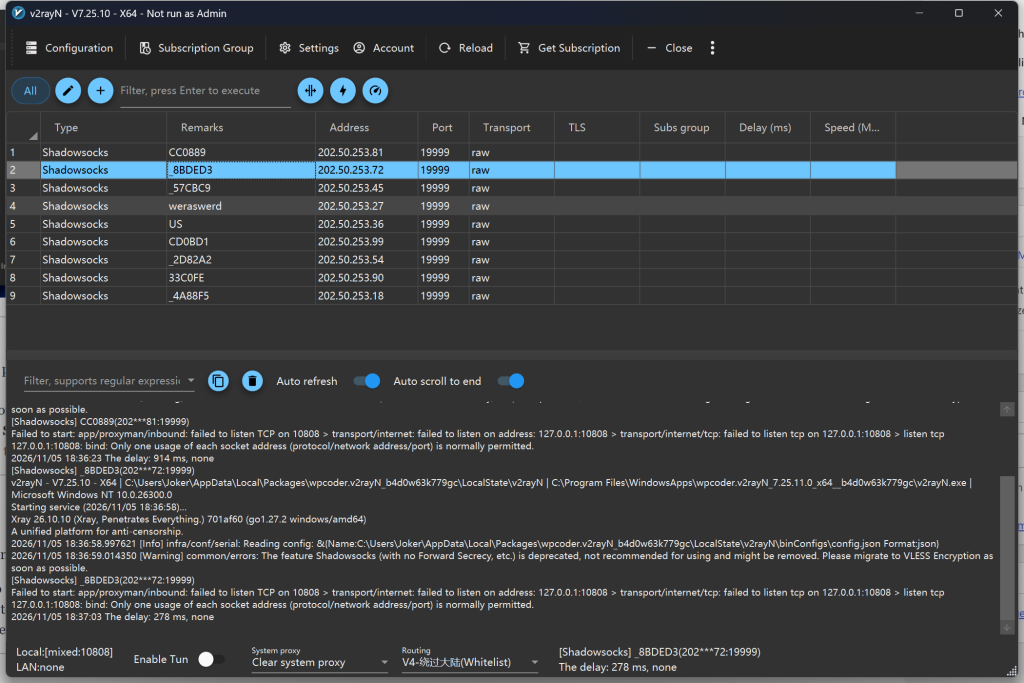
- Activate a node: Click to select your imported node in the main list, then press Enter on your keyboard, or right-click the node and choose Set as active server (the selected node text will turn red or bold).
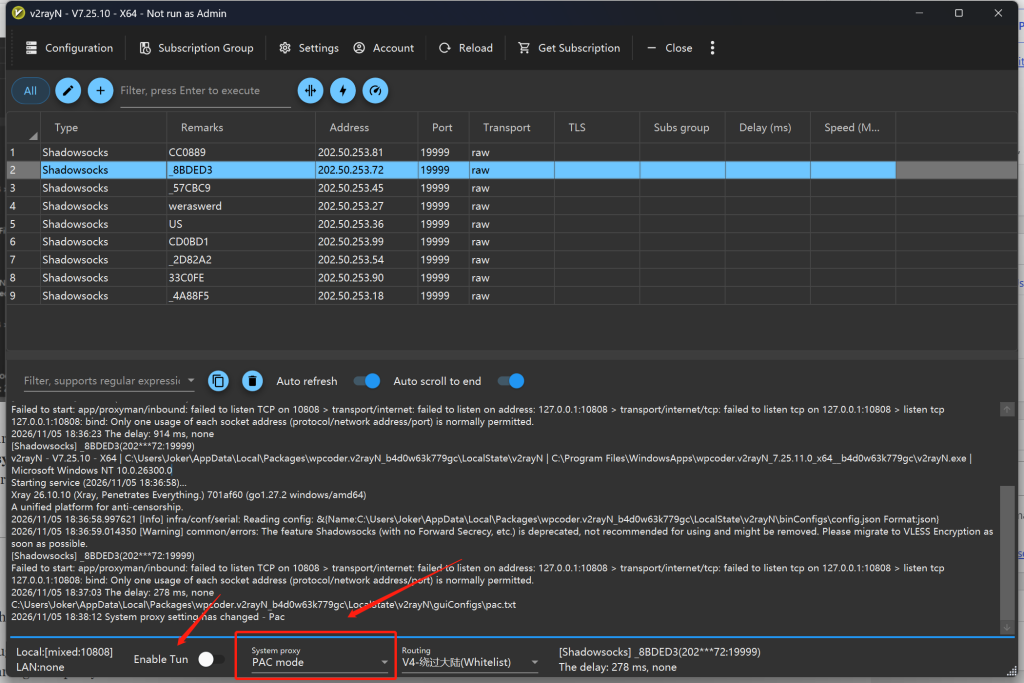
- Turn on the system proxy:
-
- Locate the v2rayN icon in the system tray (bottom right corner of your screen) and right-click it.
- Hover over System proxy and select Clear system proxy or Set system proxy (the icon will turn red when the proxy is active).
- Your browser should now be able to access the internet through the proxy.
-
- Turn on the system proxy:
-
- Bypass Mainland China (Whitelist Mode): Only overseas websites go through the proxy server, while domestic websites connect directly (recommended for daily use).
- Global Mode: All network traffic (both domestic and international) is routed through the proxy server.
- Blacklist Mode: All traffic goes through the proxy except for websites listed in the blacklist.